







Graphics Driver
|
|
Android 10+ |
|---|---|
|
|
1.1.4 |
|
|
Tools |
|
|
Cast4TV |
|
|
GET IT ON
Google Play
|
|
|
|
|
|
17.2 MB |
|
|
Free |
Graphics Driver Preferences: The Hidden Switch That Makes Android Games Feel Alive
Graphics Driver Preferences isn’t a “game” in the usual sense. It’s the backstage pass. The secret lever that can turn your phone from “it runs” into “it flies.” Ever wondered why one update makes a game feel smoother, sharper, and strangely more responsive?
Driver Switching Feels Like Flipping A Turbo Mode In Your Pocket
You open the app, and it feels like you’re stepping into the developer room. No flashy menus. Just power. Game Driver Preferences lets you pick how specific apps talk to your GPU, like choosing the best language for speed and stability. Some users even say certain options can push Vulkan paths for better performance, making frames feel cleaner and more consistent.
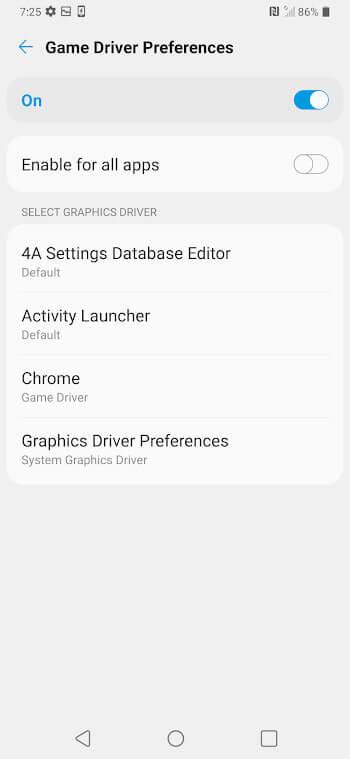
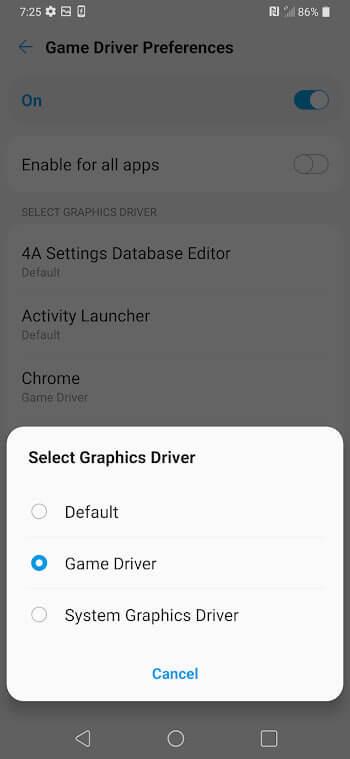
- Lightning Control: You get a real option of switching between system graphics driver and game driver preference for each supported game or app. One tap can change how your device renders motion.
- Performance Rush: Choose Game Driver when you want to get good performance. The difference can feel like removing ankle weights from your gameplay.
- Battery Saver Instinct: Choose System Graphics Driver when you want to get good battery and steadier heat behavior, especially on long sessions.
Vulkan-Style Smoothness Makes Colors Pop And Input Feel Sharper
This is where the magic gets cinematic. The right graphic driver can make a game’s lighting feel less jittery, like the world finally breathes in full resolution. If a title stutters on old versions, or after an update, Graphics Driver Preferences can be a practical solution to reduce weird frame pacing. You feel it immediately when you pan the camera and the scene doesn’t tear like paper.
- Smoother Visual Flow: With the right driver, animations can look more stable, especially during heavy effects, shadows, and fast movement.
- Better Stability: Some combinations can reduce random crashes or glitchy rendering, depending on device and version history.
- More “Modern” Rendering: Vulkan-friendly paths can make certain games feel less fragile under pressure, like your phone finally speaks the engine’s native language.
Developer Options Unlock A New Level Of Control And Confidence
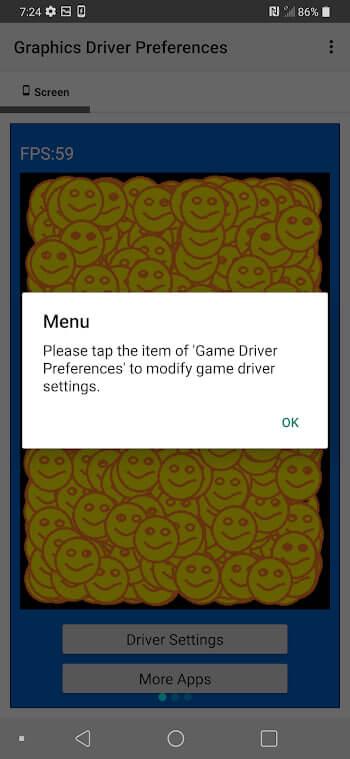
This app is also about access. It can help you to enable developer options and modify graphics driver settings without feeling lost in a maze. The first time you toggle it, it feels like turning a key you didn’t know you owned. You stop guessing. You start testing. And suddenly, the “problem” isn’t a mystery anymore, it’s a setting.
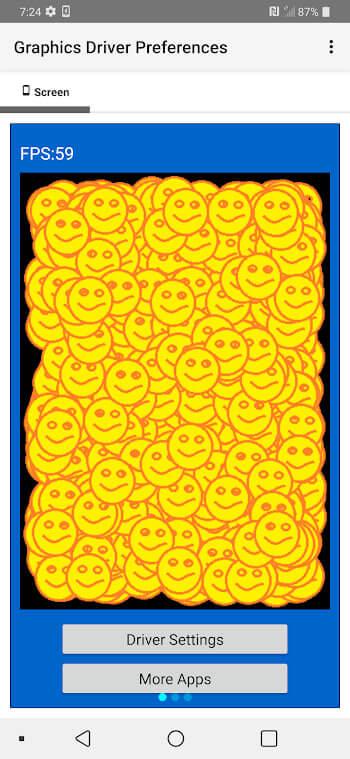
- Enable First, Then Modify: Tap Driver Settings to enable developer options. Tap Driver Settings again to enable developer options and modify graphics settings for apps.
- Per-App Tuning: You can choose which game gets the fast lane and which app gets the efficient lane, instead of forcing one mode across your whole system.
- Simple, Powerful Options: The interface is minimal, but the impact is real. It gives users control without drowning them in tech jargon.
Download, Install, And Update Feels Like Arming Your Android For Battle
If you’re searching “download graphics driver preferences” or “graphics driver preferences apk,” you’re not alone. Many users look for the latest version of graphics driver to fix a stubborn stutter, improve performance, or test driver behavior after a major release. Depending on your device, you may find it through Google Play or an app store listing, while other users explore APK distribution sites like APKPure for old versions or version history tracking.
- Installation Matters: If you install Graphics Driver Preferences (sometimes listed as cast4tv.graphics.driver.preferences), treat it like a system tool. Keep track of the version of graphics driver preferences you’re using.
- Update Smart: A new update can improve compatibility, but old versions may be useful if a specific game behaves better with earlier driver behavior.
- Get Clean Information: Use reliable website sources when you search for graphics driver preferences apk, and always verify the latest version and version history before installing.
System Vs Game Driver Is A Real Choice With Real Consequences
This isn’t just a toggle. It’s strategy. With System Graphics Driver, you’re prioritizing stability and battery lifetime. With Game Driver, you’re telling Android to lean into gaming performance based on your hardware, especially on newer systems where this feature matured. Android 10 made Game Driver preference feel like a new era: games can run closer to native GPU hardware APIs, even if they were built with heavier graphics instructions in mind.
- System Graphics Driver: The calm, efficient mode. Great for daily use, streaming, and long play sessions when heat and battery matter.
- Game Driver Preference: The aggressive, performance-first mode. Great when you want better frame pacing, smoother effects, and less “rubber-band” input feel.
- Test Like A Pro: The best approach is hands-on. Pick one game, switch mode, play the same scene, and feel the difference in your thumbs and eyes.
Conclusion
Graphics Driver Preferences is the kind of app that doesn’t brag. It just delivers. Flip the right option, and your Android device can feel reborn, like the game finally got the hardware it deserves.